How to Set-Up Email Addresses in Outlook Express
Important Information
Incoming Mail Server (POP3): |
pop.trxinc.com |
Outgoing Mail Server (SMTP): |
smtp.trxinc.com |
First, open Outlook Express 5 using the icon on your desktop named "Outlook Express" or through your Start Menu in the "Programs…Internet Explorer" folder.
Go to Tools...Accounts..., Click the Mail tab, then Click Add and Mail...
Another window will then pop-up and ask you for the information that goes with the email address that will be used by the identity you just set-up.
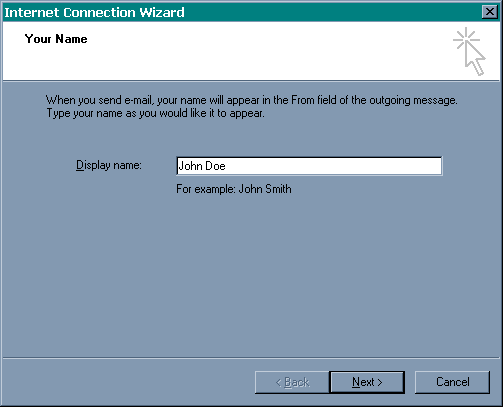
Enter your display name (full name) as it appears on your sign-up sheet, and click "Next >"

Enter your e-mail address as it appears on your sign-up sheet, and click "Next >"

On this page, enter in the "Account Name" as the first part of your email address, for example: If you email address is "johndoe@trxinc.com", then your account name will be "johndoe", enter in your e-mail password as it appears on your sign-up sheet as well, and then click "Next >"

Enter the mail servers as they appear at the top of the first page in these instructions where it says "Important Information" and click "Next >"

Click "Finish" to complete the setup of your e-mail account.

Connect to the Internet and click the "Send/Recv" button to check for new messages.